The main window
Layout
The main window has five areas:
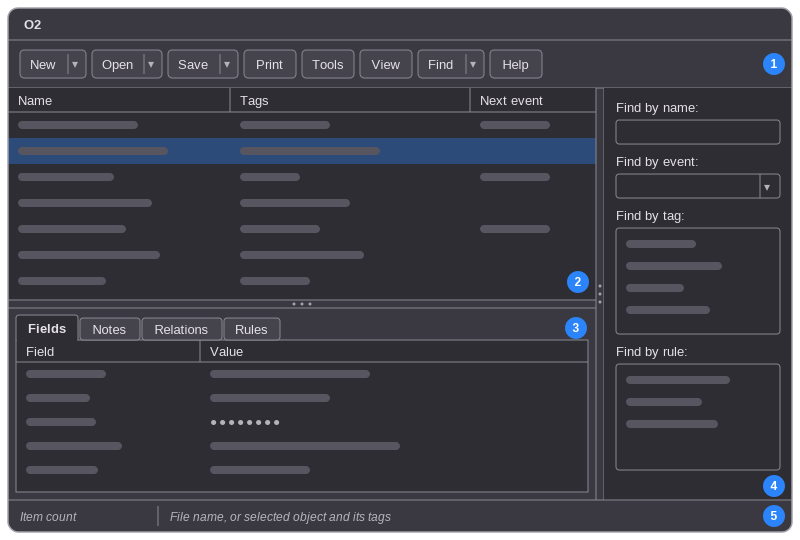
- Toolbar
- Objects list
- Details tabs
- Search pane, shown only when you click Find
- Status bar
The picture is a simplified wireframe: the actual look of the window depends on your system and theme. You can drag the splitters between areas to resize them.
Toolbar
Buttons with an arrow open a menu with related commands. Click the button itself to run its main command.
| Button | Click | Menu |
|---|---|---|
| New | Start a new, empty file. | New, New object, New relation, New rule, New window |
| Open | Open a file. | Open, Reopen, Open folder, recent files, Clear recent file list, Import |
| Save | Save the file. | Save, Save as, Save as copy, Export, Export to HTML |
| Print the shown or selected objects. | — | |
| Tools | Open the Tools menu. | File properties, Import settings, Export settings, Transparency, Always on top, Check for updates now, Check for updates periodically, Install on removable media |
| View | Open the View menu. | Large icons, Small icons, List, Report, Sort by name, Sort by tags, Sort by next event |
| Find | Show or hide the search pane. | Find, Clear search |
| Help | Open the Help menu. | Home, Project page, Support requests, Feature requests, Bug reports, About O2 |
New window starts a second copy of O2, so you can work on two files side by side.
Objects list
The objects list shows the objects in the file that pass the current search filter.
Views
Choose a view from the View menu:
- Large icons, Small icons and List show object names only.
- Report shows three columns: Name, Tags and Next event.
Sorting
Choose Sort by name, Sort by tags or Sort by next event from the View menu, or click a column header in the Report view. Choosing the same sort again reverses the order.
Sort by next event puts the objects with the nearest upcoming date first. See Events and reminders.
Highlighting
Objects can appear in color. The color comes from the rules: an object is highlighted when one of its fields matches a Highlight rule, has an event inside an event rule’s interval, or matches a Password rule that displays password strength. When several rules apply, the rule highest in the rules list wins. See Rules.
Object menu
Right-click the objects list for commands that act on objects:
| Command | Description |
|---|---|
| New object | Create an object. |
| New relation | Relate the two selected objects. Available only when exactly two objects are selected. |
| Duplicate | Create a copy of the selected object. |
| Delete | Delete the selected objects and their relations. |
| Rename | Edit the name of the selected object in place. |
| Select all, Deselect, Invert selection | Change the selection. |
| Edit tags | Open the object’s tags for editing. |
| Add tag | Add an existing tag to all selected objects. |
| Delete tag | Remove a tag from all selected objects. |
| Replace tag, Replace field name, Replace field value, Replace role | Bulk edits. See Bulk changes. |
| Properties | Open the Object properties dialog. |
Details tabs
The tabs below the objects list show details of the selected object.
Fields
Lists the object’s fields with their values, after rules are applied: passwords appear as dots, dates can show a countdown or an age, and values can be highlighted.
- Double-click a field, or press Enter, to copy its value to the clipboard.
- Ctrl+click a link or e-mail field to open it.
- Right-click for copy commands, Open link, Send e-mail and Show passwords. See Copy field values.
Notes
Shows the object’s notes. Markdown notes are displayed formatted, with headings, lists, tables and links. See Markdown in notes.
Relations
Lists the objects related to the selected one, with the other object’s role.
- Double-click a relation, or press Enter, to edit it.
- Ctrl+click a relation to jump to the other object.
Rules
Lists every rule in the file with its Rule name, Type, Field name mask and Field value mask. The check box next to each rule enables or disables it. This tab shows the file’s rules, not just those of the selected object. See Rules.
Search pane
Click Find (or press Ctrl+F) to show the search pane on the right. It filters the objects list by name, event, tag and rule. See Finding objects.
Status bar
- With no selection: the number of objects shown and the full path of the open file.
- With a selection: the number of selected objects, and the name and tags of the selected object.
Drag and drop
Drag an .o2 file from File Explorer onto the O2 window to open it.